What is Amon Hen?
Amon Hen is an AI advisor that only answers from facts your team has recorded. You add the rules, decisions, and context. It answers from that and nothing else.
Think of it as a GPT that responds entirely in the context of the knowledge base you are working in. No internet opinions, no guessing, no generic advice. If your team recorded it, the advisor uses it. If not, it says so.
The name comes from Tolkien's Hill of Sight: a place of clear seeing.
What you can do with it
- Ask "What decisions have we made?" and get a real answer based on what your team recorded
- Onboard new team members: they get instant access to everything the team knows
- Keep a permanent record of decisions and the reasons behind them
- Get the same consistent answer every time, not a different guess each session
What it does not do
- It does not make things up: if the knowledge is not there, it tells you
- It does not pull from the internet: it responds based on the context and knowledge it has of your project
- It does not decide for you: it gives you the facts so you can decide
LLM & RAG Comparison
How Amon Hen differs from a standard LLM
A standard large language model (LLM) such as ChatGPT or Copilot generates responses from patterns learned across billions of documents on the internet. It has broad general knowledge but knows nothing about your team, your decisions, your codebase, or your business rules unless you paste that context into every conversation manually. Each session starts fresh with no memory of what was said before.
Amon Hen wraps an LLM but fundamentally changes what it reasons from. The model never operates from general web knowledge alone. Every advisory response is generated exclusively from the structured, typed knowledge your team has explicitly recorded for a specific project. Your rules stay rules. Your decisions stay decisions. Nothing is hallucinated in to fill gaps.
- Draws from general internet training data
- No memory between sessions
- Cannot distinguish your team's rules from common practice
- Will confidently fill knowledge gaps with plausible-sounding answers
- Requires pasting your context into every prompt
- Draws exclusively from your team's recorded knowledge
- Persistent project corpus survives sessions and team turnover
- Explicitly typed items: rules, decisions, notes, code context
- Acknowledges when context is absent rather than guessing
- Context is always loaded automatically from the project
How Amon Hen differs from RAG
Retrieval-Augmented Generation (RAG) is a technique that pairs an LLM with a search index. When a question arrives, RAG retrieves chunks of text from a document corpus that appear semantically similar to the query, then asks the LLM to answer using those chunks as context. It is commonly used to make LLMs answer questions about large document libraries: wikis, PDFs, internal knowledge bases.
Amon Hen takes a different approach for a different problem. RAG is good at surfacing relevant passages from large unstructured document sets. Amon Hen is built for structured, authoritative team knowledge where precision and type matter more than recall volume.
- Retrieves the most semantically similar document chunks
- Knowledge is untyped: a wiki paragraph is the same as a PDF header
- Relevance is determined by vector similarity, not authority
- Stale documents and outdated passages are retrieved alongside current ones
- No mechanism to distinguish a decision from a note from an opinion
- All context is deliberately added by your team, item by item
- Every item carries an explicit type: rule, decision, note, or code context
- The advisor knows which items are authoritative directives vs. background
- Supersession tracking means outdated knowledge is replaced, not retrieved alongside the replacement
- Smaller, higher-precision corpus produces more authoritative responses than large undifferentiated document sets
The practical result: if your team has decided that all database queries must go through the data access layer, Amon Hen will state that as a rule every time it is relevant, with the rationale your team recorded for it. A general LLM will offer patterns from common practice. A RAG system will retrieve whatever passage in your documents most resembles the query, which may or may not be the actual policy.
Core Concepts
A named container for all knowledge related to one initiative, system, or workstream. Every question is asked within the context of a specific project.
A typed piece of information (a rule, decision, note, or code context) that you add to a project. These items form the corpus that the advisor draws from.
A curated bundle of pre-written knowledge items (rules, decisions, and best practices) for a specific technology or domain. Apply one to seed a project instantly.
The internal reasoning configuration that generates responses. Multiple profiles compete based on user feedback scores. The best-performing profile is automatically selected.
Getting Started
Signing in
Amon Hen requires authentication. Click Sign In on the landing page. You will be directed to a secure login screen. After authenticating, you are returned to the advisor automatically.
Requesting access
If you do not yet have an account, click Request access on the landing page. Fill in your name, email address, and select whether you need Full user access (can ask questions and add knowledge) or Viewer only access (can read and ask, but not modify context). An optional note lets you explain your use case. The administrator will provision your account and send you a setup link.
First steps after signing in
- Create or select a project in the left sidebar.
- Browse Starter Packs to seed the project with pre-written knowledge (optional but recommended).
- Add your own knowledge items: rules your team follows, decisions that have been made, and important context.
- Ask questions using the Ask tab.
Training Guide
This walkthrough shows you the five things you will do every time you use Amon Hen: pick a project, look around, load knowledge, add your own, and ask a question.
Each step below includes a screenshot of what you will see on screen. By the end, you will have a working project with real knowledge and your first advisory response.
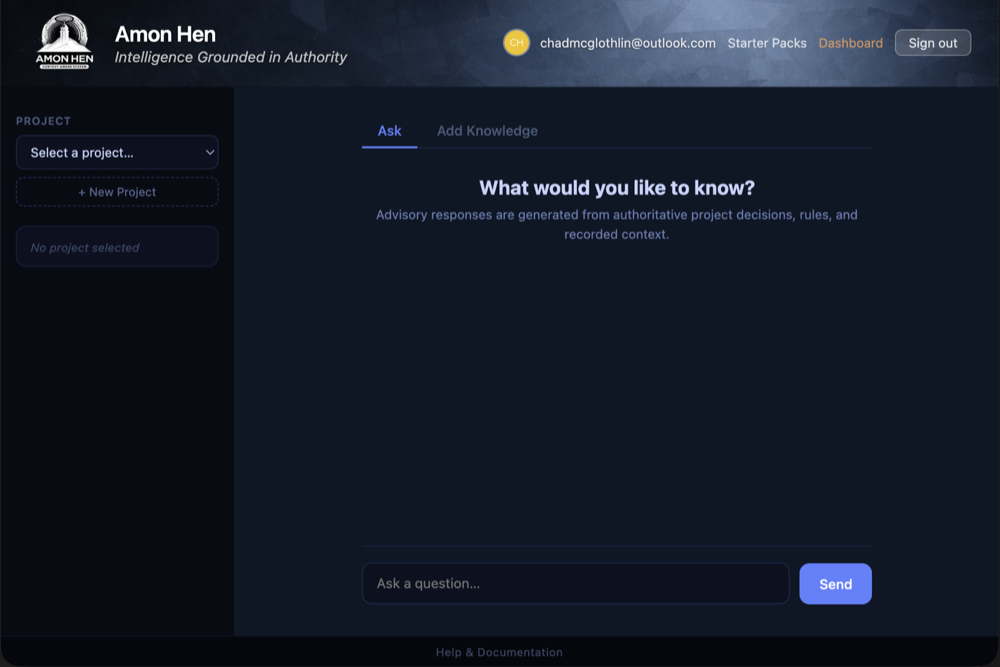
Step 1: Dashboard Overview
After you sign in, this is the first screen you see. Every project you have access to is listed here. Click any project name to open it. Every new user starts with three example projects already loaded so you can explore right away.
Step 2: Inside a Project
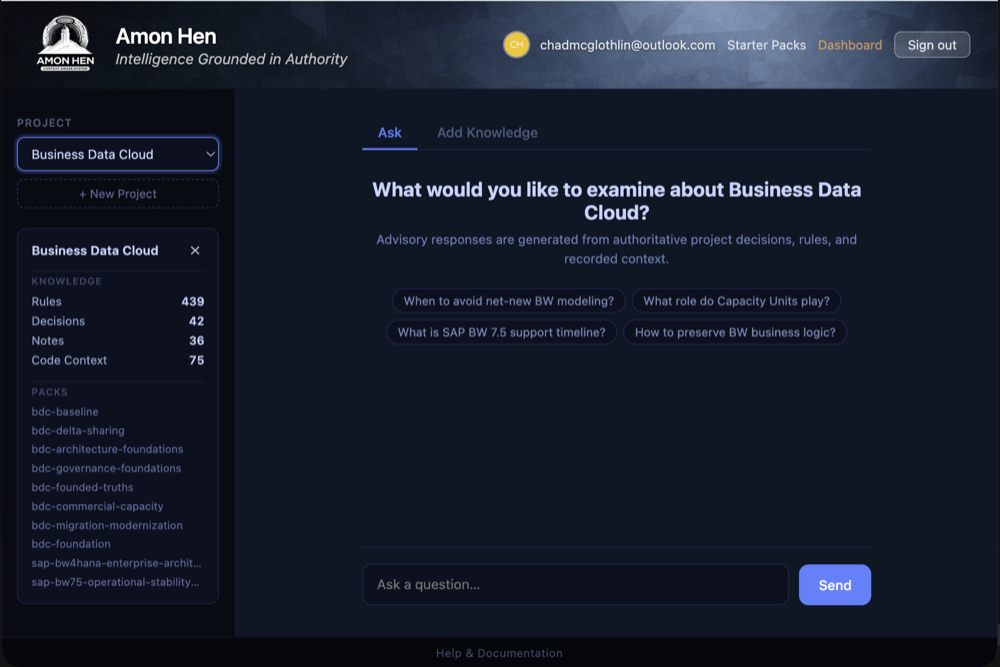
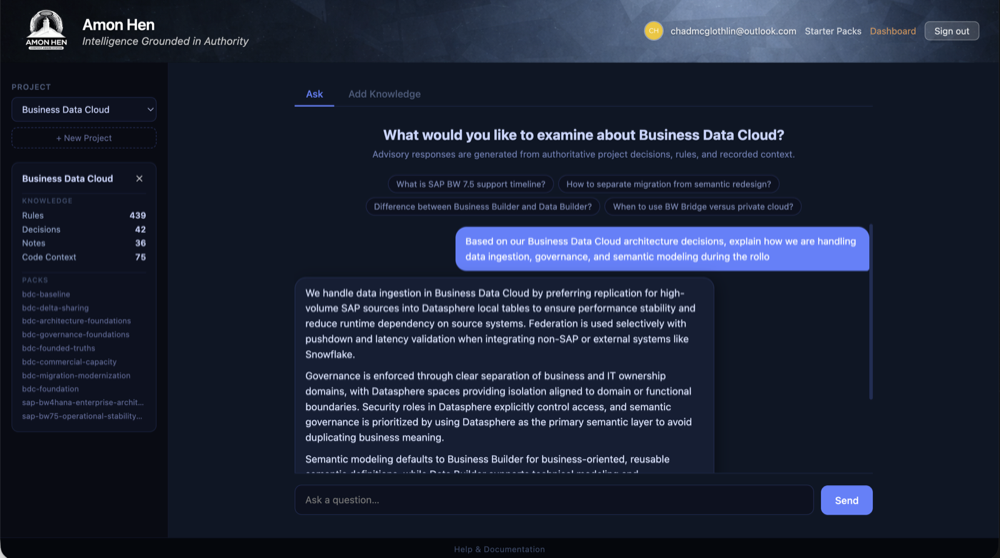
This is what a project looks like once you open it. The left sidebar shows what knowledge is already loaded: how many rules, decisions, notes, and code items the project contains. The main area is where you ask questions and get answers. Everything you do from here forward is scoped to this one project.
Notice the suggestion chips at the top of the conversation area. These are example questions the system generates based on what the project already knows. Click any one to send it instantly. They are a good way to see what the advisor can do before you write your own question.
Step 3: Add a Starter Pack
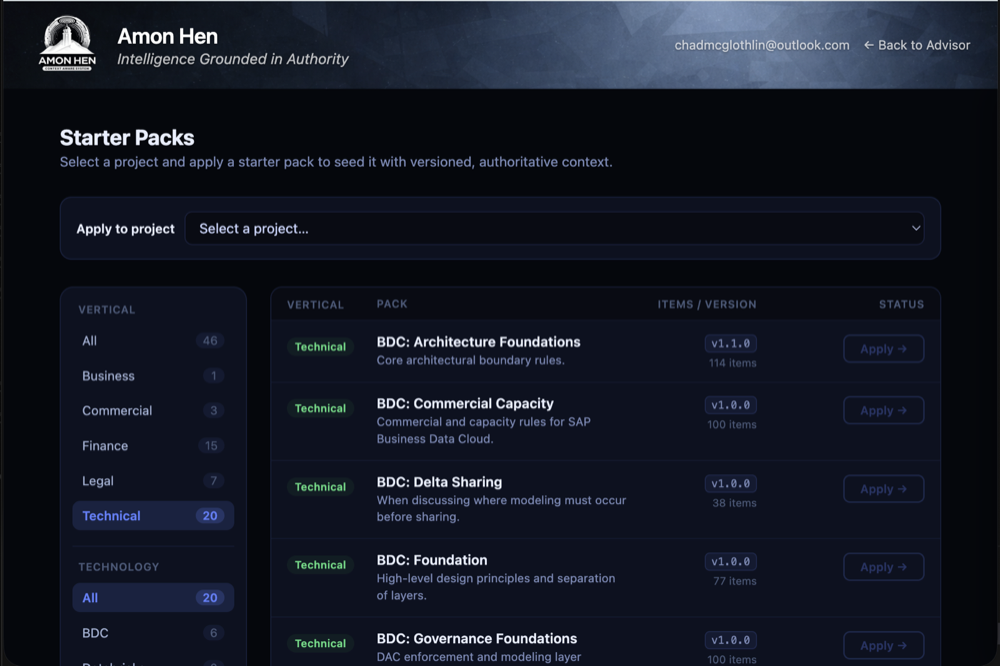
A Starter Pack is a ready-made bundle of knowledge for a specific technology or domain. Instead of typing dozens of rules and decisions by hand, you pick a pack and apply it. The pack's knowledge is copied into your project immediately and the advisor starts using it right away.
Step 4: Add Knowledge
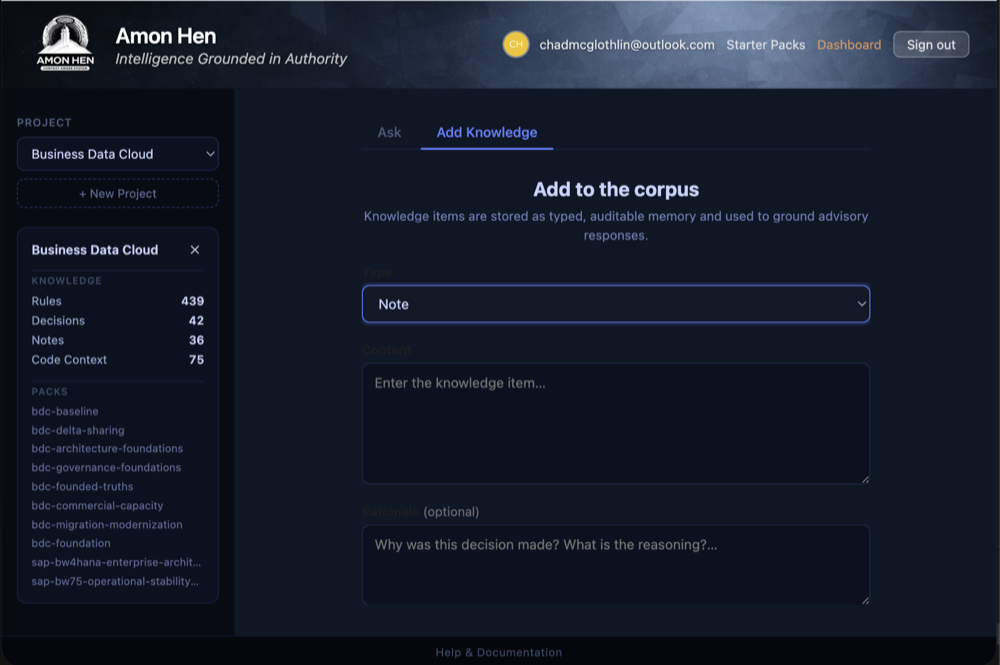
This is where you teach the advisor what your team actually does. You pick a type (Rule, Decision, Note, or Code Context), write the content, and save it. The advisor will use this knowledge in every future answer for this project. The more you add, the better the answers get.
Step 5: Contextual Question
Now ask a question. The advisor does not answer from general internet knowledge. It answers from the rules, decisions, and notes you and your team have recorded in this project. That is why the answers are specific and authoritative instead of generic. If the project does not have knowledge about a topic, the advisor will tell you instead of guessing.
Projects
A project is the fundamental unit of organization in Amon Hen. All knowledge items and advisory responses are scoped to a single project. You can have multiple projects: one per system, team, or initiative.
Selecting a project
Use the Project dropdown in the left sidebar. Choosing a project loads its knowledge summary and makes it the active context for questions and new items. The sidebar shows a count of each knowledge item type the project contains.
Creating a project
- Click + New Project below the project dropdown.
- Type a descriptive name (up to 80 characters).
- Press Enter or click Create.
The new project is immediately selected and ready for knowledge items.
The sidebar knowledge summary
When a project is selected, the sidebar shows two panels:
- Knowledge: a count of each item type (Rules, Decisions, Notes, Code Context). This tells you at a glance how populated your project is.
- Packs: any Starter Packs that have been applied to this project.
Deleting a project
Project owners see a small × button next to the project name in the sidebar. Click it to begin deletion. A confirmation prompt appears: you must confirm before anything is removed.
Asking Questions
The Ask tab is the primary interface for getting advisory responses. Select a project, type your question, and the advisor responds based entirely on the knowledge items recorded for that project.
How to ask a question
- Make sure a project is selected in the left sidebar.
- Click the Ask tab (active by default).
- Type your question in the text box at the bottom of the screen.
- Press Enter or click Send.
Press Shift+Enter to add a line break within a question without sending.
Suggestion chips
When you select a project, a row of suggestion chips appears. These are contextually generated starting points:
- Key decisions?
- Rules I should follow?
- What's established on architecture?
- What to know before making a change?
Click any chip to populate and send that question instantly.
Conversation context
Amon Hen maintains the last three exchanges (six messages) as conversation history. This means you can ask follow-up questions that reference your previous exchange:
You: What architectural decisions have we made about our database layer?
Amon Hen: The project has recorded three decisions: all queries must go through the data access layer, connection pooling is managed by PgBouncer, and direct reads from the replica are permitted for reporting only.
You: What was the rationale for the PgBouncer decision?
Conversation history resets when you switch to a different project.
Response actions
Each advisory response includes three action buttons beneath it:
- Copy: copies the full response text to your clipboard.
- Thumbs up: marks the response as accepted. Used to score the advisory profile.
- Thumbs down: marks the response as rejected. Used to reduce the profile's score.
Writing effective questions
- Be specific: "What rules govern how we handle null values in ETL pipelines?" is better than "Rules?"
- Use the domain language your team uses: the advisor understands the terminology you have recorded.
- Ask for rationale when you want the why: "Why did we choose Databricks over Snowflake for transformation?"
- Ask multi-part questions in one message: "What are our GAAP close rules and who is responsible for the reconciliation step?"
Adding Knowledge
The Add Knowledge tab lets you populate a project's corpus. Every item you add is stored with a type, content, optional rationale, and a timestamp. The quality of advisory responses is directly proportional to the quality and completeness of the knowledge you add.
How to add an item
- Select a project.
- Click the Add Knowledge tab.
- Choose a Type from the dropdown.
- Enter the Content: the statement itself.
- Enter a Rationale if applicable (required for decisions).
- Click Add to Corpus.
Knowledge item types
See the full Knowledge Item Types reference for detailed guidance and examples for each type.
Giving Feedback
Your feedback directly improves the advisory engine. After every response, you can rate it with a thumbs up or thumbs down. Over time, these ratings determine which advisory profile is used to answer your questions.
How feedback works
- Thumbs up: the response was accurate, useful, and grounded in the project context as you understand it. Score contribution: 100 points.
- Thumbs down: the response was inaccurate, missing critical context, or otherwise not useful. Score contribution: 0 points.
Feedback is recorded against the advisory profile that generated the response. Once a profile accumulates 10 samples, it competes with other profiles for active status. The profile with the highest average score above that threshold is promoted and used for all subsequent questions.
Viewing feedback outcomes
Administrators can see aggregate feedback data on the Performance Dashboard, including acceptance rates, average scores per profile, and 30-day outcome distributions.
What Are Starter Packs?
A Starter Pack is a curated, versioned bundle of knowledge items pre-written for a specific technology, framework, discipline, or domain. Instead of manually entering dozens of rules and decisions from scratch, you can apply a Starter Pack to seed a project with authoritative baseline knowledge in seconds.
Starter Packs are maintained and versioned by the Amon Hen administrator. When a newer version of a pack is published, the old version remains applied to any projects that used it: you opt in to updates explicitly.
What a pack contains
Each pack contains a mix of knowledge item types appropriate to the domain:
- Rules: standard practices and constraints for the technology
- Decisions: common architectural choices with recorded rationale
- Notes: contextual background and reference information
- Code Context: naming conventions, patterns, and implementation guides
Pack verticals and technologies
Packs are organized along two dimensions, accessible from the sidebar on the Starter Packs page:
- Vertical: the discipline the pack addresses. Current verticals include Technical (engineering and data platform knowledge) and Finance (GAAP, IFRS, SEC reporting, audit standards, etc.).
- Technology: the specific platform or tool (BDC, Snowflake, Databricks, SAP, and others).
Selecting a vertical and technology in the sidebar filters the pack grid to show only relevant packs. The counts update dynamically as you filter.
Browsing & Filtering Packs
Navigate to Starter Packs from the header link on the main page. You must be signed in to access this page.
The sidebar filters
The left sidebar has two filter sections separated by a divider:
- Vertical: All, Technical, Finance (and any future disciplines). Click a vertical to restrict the grid to packs in that discipline.
- Technology: All, plus each technology group present in the current vertical filter. Click a technology to further narrow the grid.
Filters are AND-combined: selecting Finance + Snowflake shows only packs that are in the Finance vertical and the Snowflake technology group.
The count next to each filter item shows how many packs match that filter within the context of your other active filter. For example, the Vertical count reflects how many packs match within the currently active Technology filter.
Search
The search box below the sidebar filters the pack grid in real time against pack names and descriptions. Search is case-insensitive and works alongside the sidebar filters.
Set Vertical to Finance, then type audit in the search box to see only Finance packs that mention auditing in their name or description.
Pack cards
Each pack is displayed as a card. Cards are collapsed by default: only the pack name and version are visible. Hover over a card to expand it and reveal the description and action buttons.
A green dot in the top-left corner of a card indicates this pack has already been applied to the currently selected project. Applied packs are sorted to the top of the grid for quick reference. The date applied is shown on expanded applied cards.
Applying a Pack
Step-by-step
- On the Starter Packs page, select the project you want to seed from the Apply to project dropdown at the top.
- Browse or search for the pack you want.
- Hover over the pack card to reveal the Apply button.
- Click Apply. A loading indicator appears while the pack items are inserted.
- A toast notification confirms success and shows the number of items added.
What happens when you apply a pack
All items in the pack are copied into your project's knowledge corpus exactly as written. They become your project's knowledge: you can add to them, and the advisor uses them immediately for all subsequent questions.
Applying the same pack twice to the same project is blocked: you'll receive a notification that it is already applied. To get items from a newer version of a pack, an administrator can upload the updated version, which will appear as a separate entry.
After applying
Return to the main Advisor and select the project. The sidebar will list the pack name under Packs. Start asking questions immediately. The pack's knowledge is already active in the context.
Access Requests Admin
The Admin page is accessible only to the Amon Hen administrator. The first panel, Access Requests, lists all users who have requested an account.
Request table columns
- Name: the name the requester entered
- Email: the email they will use to sign in
- Type: Full user or Viewer only
- Note: optional message from the requester
- Requested: date and time of the request
- Status: Pending, Approved, or Denied
- Actions: Approve or Deny buttons for pending requests
Filter by status
Use the filter buttons above the table (All, Pending, Approved, Denied) to focus on the relevant subset. Click ↻ Refresh to reload the table after taking actions.
Approving a request
Click Approve next to a pending request. The system creates the user account in Auth0 and generates a password-setup link. A modal appears with the link; copy it and send it directly to the user. The link is valid for 7 days.
Denying a request
Click Deny to mark the request as denied. No account is created. The requester is not automatically notified: notify them separately if appropriate.
Uploading Starter Packs Admin
The second panel on the Admin page lets you publish new Starter Packs or update existing ones without a code redeploy. Packs are defined in JSON and pasted directly into the upload form.
Using the format reference
The Required format block above the upload textarea shows the complete schema. Click Copy to copy it to your clipboard as a starting template.
Pack JSON structure
See the full Pack JSON Format reference below for field definitions and examples.
Uploading
- Compose your pack JSON (use the format reference as a template).
- Paste the complete JSON into the textarea.
- Click Upload Pack.
- A status message confirms success or shows the validation error.
Updating an existing pack
To publish a new version of an existing pack, upload the same name with a
higher version number (e.g., "1.1.0"). The old version remains
applied to any projects that used it. Users who apply the pack after the upload will
receive the new version.
To replace an existing entry with the same version (e.g., to fix a typo),
re-upload with the same name + version. The existing entry is
overwritten.
Vertical classification
Set "vertical" to one of the following values to control sidebar filtering
on the Starter Packs page:
"technical": engineering, data platform, and software packs (default)"finance": GAAP, IFRS, SEC reporting, audit, and accounting packs
If vertical is omitted, the system will attempt to infer it from the pack
name and description using keyword detection. Setting it explicitly is always more
reliable.
Performance Dashboard Admin
The Performance Dashboard shows aggregate feedback statistics across all advisory profiles and users. Use it to monitor response quality and understand how well the advisor is calibrated.
KPI strip
Profile Activity chart
Shows how many feedback samples each reasoning profile has accumulated. Profiles with more samples have been selected more often. Low sample counts mean a profile is still building its performance record.
Profile Leaderboard
Ranks profiles by average score. The active profile (currently answering questions) is the highest-scoring profile with at least 10 samples. Profiles below that threshold are on standby, accumulating samples before they can compete.
Performance Trend (7 days)
Daily average score across all profiles for the past week. An upward slope indicates recent responses have been rated more positively. Sharp dips may coincide with complex question types or a profile rotation event.
Feedback Breakdown
Per-profile view showing average score, sample count, acceptance rate, and status (Active or Standby). Use this table to identify which profiles are performing well and which are dragging the average down.
Outcome Breakdown (30 days)
Distribution of feedback outcome types over the last 30 days:
- Accepted: response used as-is (score: 100)
- Rejected: response was not usable (score: 0)
A healthy distribution is acceptance-heavy with minimal rejections.
Knowledge Graph Admin
The Knowledge Graph provides a visual representation of all knowledge items in a project and the relationships between them. It reveals how decisions connect to the rules derived from them, how notes reference decisions, and how items supersede one another.
KPI strip
- Total Nodes: total knowledge items in the project
- Total Edges: total relationships between items
- Max Traversal Depth: deepest chain of relationships found
- Node Types: number of distinct item types present
Filter bar
Refine what you see in the graph using four filter dimensions:
- Project: select which project's graph to display. The graph clears and reloads when you change projects.
- Node Types: toggle visibility of Rule, Decision, Code, and Note nodes individually.
- Max Depth: limit the traversal depth (1, 2, or 3 hops from any node). Lower depth reduces visual noise in densely connected graphs.
-
Edge Types: show or hide specific relationship types:
applies_to,references,derived_from,supersedes.
Interacting with the graph
- Click a node: opens the Node Detail drawer on the right, showing the item's full content, type badge, metadata, and list of connections.
- Drag nodes: reposition them for clarity.
- Scroll to zoom: zoom in or out on dense graphs.
- Focused mode: when a node is selected, the graph may highlight its neighborhood. Click × Reset to return to the full graph view.
Node colors
Bottom analytics tables
- Node Type Distribution: count and percentage share of each node type
- Edge Type Distribution: count and percentage share of each edge type
Knowledge Item Types: Reference
Choosing the right item type is important. The advisor is aware of types and uses them to weight and present information appropriately. Rules carry authority; decisions carry history; notes carry context.
Rule
A rule is a standing directive: something that is always true or always expected of the team. Rules do not expire unless superseded. Rationale is optional but helps the advisor explain the rule when asked.
All SQL queries accessing the transactions table must include a date-range predicate.
No personal identifiable information may be stored in log files.
All Databricks jobs must declare explicit cluster termination policies.
Revenue recognition entries require a second reviewer before close.
Decision
A decision is a choice made at a point in time. Decisions can be revisited; the current decision is the one that stands until a new decision explicitly supersedes it. Rationale is required for all decisions because the value of recording a decision is understanding why it was made, not just what was decided.
Content: We will use Snowflake as our primary data warehouse for the analytics platform.
Rationale: Evaluated Snowflake, Databricks, and BigQuery. Snowflake was chosen due to existing enterprise license, superior concurrency handling, and stronger SQL compatibility with our BI tooling.
Content: The MD&A section will be prepared by the Controller, not the FP&A team.
Rationale: Prior audit feedback indicated that FP&A narratives introduced forward-looking statements that conflicted with SEC guidance. Assigning to the Controller ensures compliance review is embedded in the drafting process.
Note
A note is flexible context: background information, references to external documents, caveats, or anything that helps the advisor give a richer, more accurate answer without being a rule or decision. Use notes liberally.
The staging environment was last refreshed from production on 2026-01-15. Data in staging may be up to one month stale.
The PCAOB audit cycle runs April through June each year. All workpapers must be in final form by March 31.
The legacy ETL pipeline (v1) is still running in parallel with the new pipeline (v2) until migration is complete, estimated Q3 2026.
Code Context
Code context captures technical patterns, naming conventions, architecture patterns, or implementation snippets relevant to the project. This type is especially useful for grounding the advisor in the team's actual code style so that technical guidance is precise and immediately applicable.
All Python modules in this project follow the pattern: load_ for ingestion functions, transform_ for cleaning, write_ for output.
Snowflake external stages use the naming convention stg_{source}_{table}. Example: stg_salesforce_opportunities.
All dbt models must include a unique_key configuration and use incremental materialization for tables exceeding 10M rows.
Pack JSON Format: Reference
This reference describes every field in the Starter Pack JSON format. Use this when creating packs for upload via the Admin page.
Top-level fields
| Field | Type | Required | Description |
|---|---|---|---|
name |
string | Yes | Unique identifier for the pack. Use lowercase with hyphens for slug-style names (e.g., snowflake-governance) or natural language (e.g., GAAP Close Playbook). Combined with version to form a unique key. |
version |
string | Yes | Semantic version string (e.g., "1.0.0"). Increment the version number to publish an update. |
description |
string | Yes | A short (1–3 sentence) description of what the pack covers and what kind of project it is suited for. Displayed on the pack card. |
vertical |
string | Recommended | Discipline label for sidebar filtering. Values: "technical" (default) or "finance". Omitting this field triggers automatic keyword inference. |
items |
array | Yes | Array of knowledge item objects. Must contain at least one item. |
Item object fields
| Field | Type | Required | Description |
|---|---|---|---|
item_type |
string | Yes | One of: "rule", "decision", "note", "code_context" |
content |
string | Yes | The statement, rule, decision, or code pattern text. Write in full sentences. Be specific and concrete. |
rationale |
string | Required for decisions | The reasoning behind a decision. May be omitted for rules, notes, and code context. |
Complete example
{
  "name": "snowflake-governance",
  "version": "1.0.0",
  "description": "Core governance rules and architectural decisions for Snowflake data platform implementations. Covers security, cost management, and query performance.",
  "vertical": "technical",
  "items": [
    {
      "item_type": "rule",
      "content": "All Snowflake roles must follow the RBAC hierarchy: SYSADMIN > DATABASE_OWNER > SCHEMA_OWNER > object-level roles. No user should be granted ACCOUNTADMIN for day-to-day operations."
    },
    {
      "item_type": "decision",
      "content": "We use transient tables for all intermediate transformation layers.",
      "rationale": "Transient tables do not contribute to Fail-safe storage costs and our intermediate data is reproducible from source. This reduces monthly storage costs by approximately 40% compared to permanent tables."
    },
    {
      "item_type": "note",
      "content": "Snowflake credits are billed per-second with a 60-second minimum per warehouse start. Auto-suspend should be set to 60 seconds for development warehouses and 5 minutes for production warehouses."
    },
    {
      "item_type": "code_context",
      "content": "Warehouse naming convention: {ENV}_{TEAM}_{SIZE}_WH. Example: PROD_ANALYTICS_MEDIUM_WH. Environment prefixes: DEV, STG, PROD."
    }
  ]
}
Frequently Asked Questions
Why does the advisor say it doesn't have enough context to answer?
The advisor can only draw from knowledge items explicitly recorded in your project. If a topic has no rules, decisions, or notes recorded for it, the advisor will say so rather than guessing. The fix is to add knowledge items covering that topic, or to apply a Starter Pack that addresses it.
Can I add knowledge items from a different device or browser?
Yes. Knowledge items are stored server-side. Any signed-in user with access to the project can add items from any device. Changes are immediately visible to all users of the same project.
How many knowledge items should a project have?
There is no minimum or maximum. In practice, projects with 20–50 well-written items produce noticeably better advisory responses than sparse projects. The advisor uses the full context for every question: more items mean more authority behind each answer.
Does applying a Starter Pack modify any items I already added?
No. Applying a pack only adds new items to the project. Your existing knowledge items are not modified, removed, or superseded by the pack. If there is a conflict, both the pack item and your item will exist: the advisor will incorporate both.
Can I apply the same Starter Pack to multiple projects?
Yes. A pack can be applied independently to as many projects as you like. Each application is tracked separately: the pack items are copied into each project's corpus.
What happens to my conversation history when I switch projects?
Conversation history is reset when you switch projects. This ensures the advisor is not confused by context from a previous project. The history is not saved permanently.
Why is the Advisory Profile Leaderboard showing only one profile?
Additional profiles are promoted into competition as the system collects feedback data. A new deployment starts with a single default profile. As users provide thumbs-up and thumbs-down feedback, alternative profiles are tested. Each profile needs at least 10 feedback samples before it competes for active status.
Can I delete a knowledge item after adding it?
Individual item deletion through the UI is not currently supported. If an item needs to be removed or corrected, contact the administrator, or add a note documenting that the previous item is superseded and include the corrected information.
Is my project data private to my team?
Projects are scoped to the workspace. All authenticated users within the Amon Hen instance can see and query projects. If you need project-level access control, contact the administrator.
Who do I contact if something isn't working?
Reach out to the Amon Hen administrator. The admin can be reached through your organization's standard support channels. If you're seeing an error message, note the exact text of the message and the action you were performing when it appeared.